VP Swiper Slider - Content Sources Overview
VP Swiper Slider is built around the idea of a content source — the thing that decides what each slide contains. You pick one source per module instance, the module loads the matching subform, and that's where you fill in your slides. This article gives you a tour of all five sources so you know which one fits your use case.
What a content source actually is
Most slider extensions only let you do one thing — drop in images. VP Swiper Slider takes a step back and asks where your slide content lives. Sometimes it's a handful of images you upload by hand. Sometimes it's published articles in a Joomla category that already update themselves. Sometimes it's a row of partner logos. Each of those needs a different editing UI.
That's what content sources do. You open the Slide source tab in a VP Swiper Slider module, pick a source from the dropdown, and the module shows you exactly the right fields for that kind of content — nothing more, nothing less.
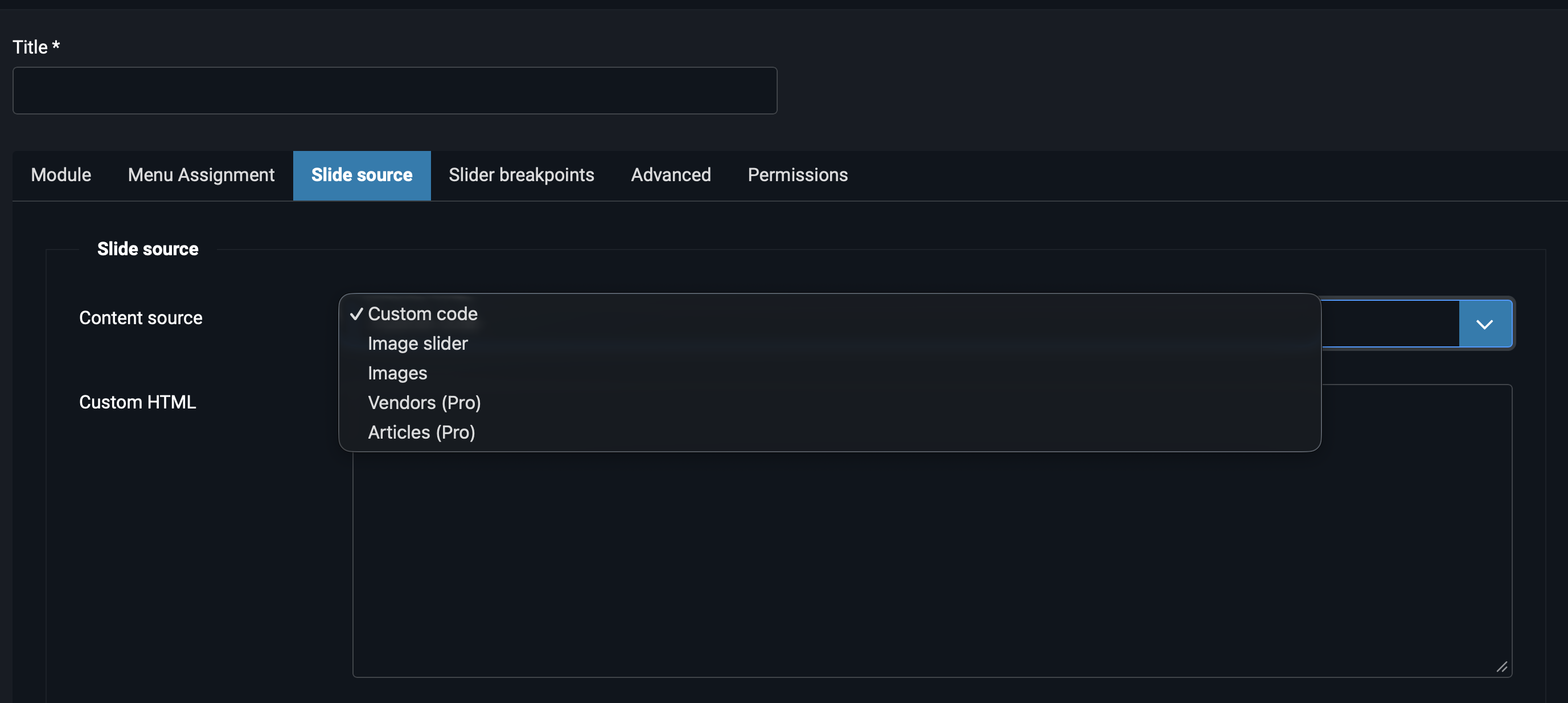
Quick reference
| Source | What it produces | Edition |
|---|---|---|
| Custom code | Free-form HTML — you write the markup for each slide manually. | Free & Pro |
| Image slider | Image background with overlay title, text and a call-to-action button. | Free & Pro |
| Images | Image-led carousel — each slide is a picture with optional caption below and full-card link. | Free & Pro |
| VendorsPRO | A scrolling band of partner or sponsor logos, with grayscale-on-hover effect. | Pro only |
| ArticlesPRO | Cards pulled from a Joomla category — image, title and intro text, automatically. | Pro only |
Custom code
Best for: when you need full creative control over slide markup — embedded videos, complex layouts, custom interactions, mixed content types in one carousel.
You paste raw HTML into a single textarea. Each slide must be wrapped in <div class="swiper-slide">...</div> — the module hands your markup straight to Swiper, so the standard slide wrapper class is required. Inside each swiper-slide div, anything goes: text, images, iframes, embedded videos, even other Joomla modules loaded through {loadmoduleid N}.
A minimal three-slide example looks like this:
<div class="swiper-slide">
    <h2>Slide one</h2>
    <p>Anything you want here.</p>
</div>
<div class="swiper-slide">
    <img src="/images/photo.jpg" alt="">
</div>
<div class="swiper-slide">
    <iframe src="https://www.youtube.com/embed/..." allowfullscreen></iframe>
</div>
This is the most powerful source, and also the one that demands the most work. If you're building something the other sources don't cover — go here. If you're just showing a row of images, don't.
Image slider
Best for: hero banners, promo carousels, anything where each slide needs an image plus a heading, body copy and a button.
This is the classic "marketing slider" source. Each row in the subform holds:
- Image — full-bleed background
- Title — large heading shown over the image
- Text — short supporting line under the title
- Button label & Button link — the call-to-action
Use this for the top-of-homepage slider that introduces visitors to your site, for product launch banners, for landing-page heroes. If a slide needs anything beyond image + heading + button, switch to Custom code.
Images
Best for: photo galleries, product carousels, screenshot strips, portfolio thumbnails — anywhere you want the picture to do most of the talking, with the whole slide being clickable.
Each row in the subform holds:
- Image — the picture itself
- Link — optional URL; if filled, the whole slide becomes a clickable card
- Title — optional caption heading shown under the image
- Text — optional supporting line under the title
The visual difference from Image slider is that here the image is the focus and any text sits below the picture as a caption, rather than overlaid on top with a button. Use Images for galleries; use Image slider for marketing banners.
Combine this with the Pro Zoom option to get a pinch-to-zoom photo gallery, or with Thumbnail navigation to get an e-commerce-style product gallery.
VendorsPRO
Best for: partner logo strips, sponsor walls, "as featured in" rows, technology stack showcases.
The Vendors source is purpose-built for one job: showing logos. Each row holds a logo image, the vendor's name (for the alt text), and an optional link. The module renders them in a continuously scrolling band with subtle grayscale-to-colour treatment on hover — the de-facto visual standard for partner sections in 2026.
Pair this with Autoplay: Yes, Loop: Yes and a high Slides per view (5 to 8) to get the marquee-style effect you've seen on landing pages everywhere.
ArticlesPRO
Best for: blog roll, latest news, related posts, anything where content lives in a Joomla category and changes regularly.
Instead of typing slides into a subform, you point the module at one or more Joomla categories — and it pulls articles automatically. Each slide becomes a card with the article's intro image, title and intro text, linking to the full article. Publish a new post in the category? It appears in the slider the next time the page renders.
The configuration is deliberately simple. On the Slide source tab, after picking Articles (Pro), you get:
- Category — pick one or more categories from a fancy-select dropdown. You can select multiple categories to mix their articles into one slider.
- Number of articles — how many to pull (default 3).
- Sorting — Ascending or Descending by publish date.
- Show intro image, Show title, Show intro text, Show read more — independent toggles for each card element, so you can produce anything from "image-only" to "fully captioned card".
The cards are equal-height with line-clamped intro text, so a single long article won't blow up the row height.
Switching between sources
You can change the content source on a saved module at any time — the dropdown switches the visible subform, but it does not delete data from the other sources. If you had three slides in the Image slider, then switched to Images, switched again to Articles, then back to Image slider — your three original slides are still there, untouched.
This means you can safely experiment. Set up an Articles slider, decide you'd rather hand-pick slides with Image slider, switch over — the Articles config is preserved if you ever switch back.
Next steps
Now that you know what each source does, the next two articles go into the details of how to configure them:
- Custom code, Image slider & Images — the three sources available in Free, with examples for each.
- Articles & Vendors — the two Pro-only sources, including how to pick a Joomla category for Articles and how to set up the grayscale hover treatment for Vendors.
Or, if you want to know which transition effect goes well with each source — head straight to Transition Effects.