VP Speed - Browser caching (Pro)
Browser caching tells visitors' browsers to keep your static files — CSS, JavaScript, images, fonts — for a long time, so repeat visits and navigation between pages load almost instantly. VP Speed adds the necessary rules through a managed block in your site's .htaccess, and verifies your server actually applies them. PRO
What this fixes
Without caching headers, a browser re-downloads your static files on every visit, even when they haven't changed. PageSpeed flags this as "Serve static assets with an efficient cache policy." Setting a long cache lifetime means returning visitors fetch those files from their own disk instead of the network — a large, immediate win for repeat-visit and multi-page performance.
Enabling caching
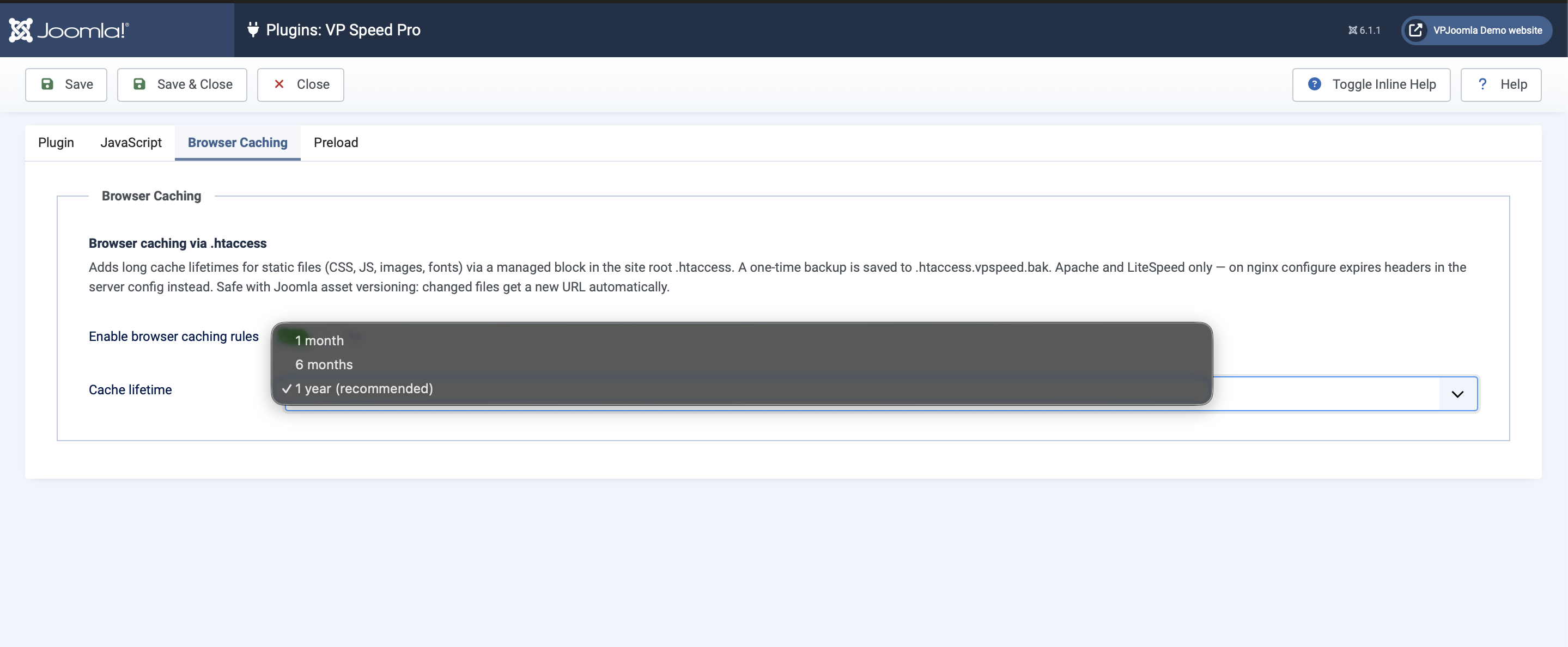
On the Browser Caching tab, switch on Enable browser caching rules and choose a Cache lifetime: 1 month, 6 months, or 1 year. One year is recommended.
On save, VP Speed writes a managed block to your site root .htaccess, between clearly marked # BEGIN VP Speed and # END VP Speed comments. Everything outside those markers is left untouched, and a one-time backup of your original file is saved as .htaccess.vpspeed.bak before the first change. Turning the feature off removes the block cleanly.
A long lifetime is safe because Joomla versions its assets with a query string (for example ?d2767f). When a file changes, its URL changes too, so the browser fetches the new version immediately — the long cache never serves stale files.
The server self-check
Writing the rules is not the same as the server applying them. After saving, VP Speed fetches one of your own static files over HTTP and checks whether the response actually carries a Cache-Control: max-age header. You'll see one of two outcomes in the administrator:
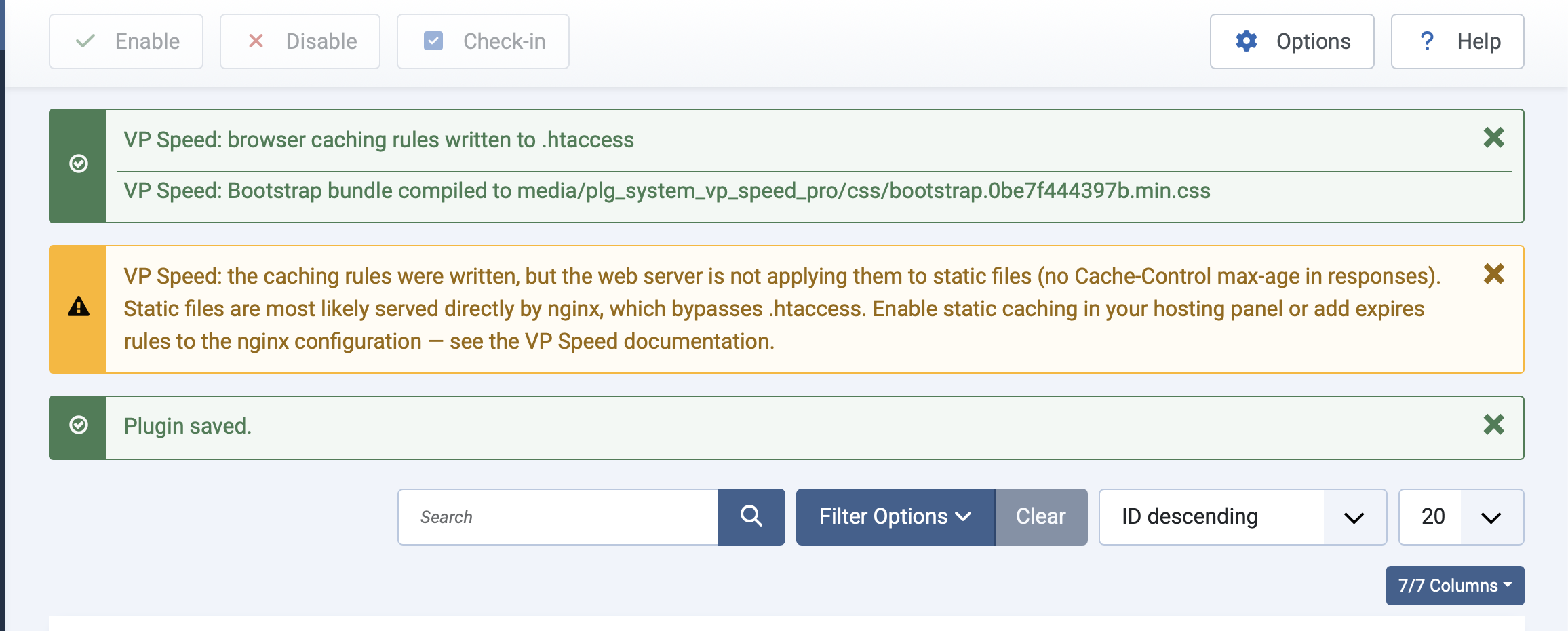
- A green confirmation that the rules were written — and, when the check passes, no warning.
- A yellow warning if the rules were written but the server is not applying them. This is the important case, covered next.
"Caching is enabled but PageSpeed still shows None"
If you see the yellow warning — or PageSpeed keeps reporting no cache policy — the cause is almost always the web server. The .htaccess file is an Apache feature. On many hosts, nginx serves static files directly and never reads .htaccess, so the rules VP Speed wrote are simply bypassed. The block is correct; the server just isn't consulting it.
The fix is one rule in your server configuration. If your host has a control panel, look for a "static file caching" or "expires headers" option there first. Otherwise, add the following to your nginx configuration (or ask your host to) :
location ~* \.(css|js|mjs|svg|webp|avif|png|jpe?g|gif|ico|woff2?|ttf)$ {
    expires 1y;
    add_header Cache-Control "public";
}
On a pure nginx or nginx-in-front-of-Apache setup, the .htaccess rules cannot take effect for static files no matter what — this is how the server is built, not a plugin limitation. The self-check exists precisely to tell you this immediately, instead of leaving you to wonder why PageSpeed never improves.
On Apache and LiteSpeed
On Apache or LiteSpeed with a writable .htaccess, the rules take effect as soon as they're written. VP Speed uses mod_headers to set an explicit Cache-Control: max-age — which is enabled on virtually every host — and adds mod_expires directives as a second layer where that module is available. No server changes are needed.
Verifying it works
The fastest check is in your browser's developer tools. Reload the front end, open the network panel, click any CSS or image request, and look at its response headers. You should see Cache-Control: public, max-age=... with a large number (31536000 for one year). If the header is there, PageSpeed will pick it up on the next run; if it's missing, revisit the nginx section above.
Caching mainly improves repeat visits and navigation between pages, so its effect shows up in the cache-policy audit and in real-world return-visit speed rather than in a single first-load score. It's one of the highest-value, lowest-effort optimizations once your server applies it.
Next step
That completes the feature tour. The final article is a troubleshooting and FAQ reference covering the questions that come up most often.