VP Speed - Bootstrap Optimizer
The Bootstrap Optimizer is the heart of VP Speed. It compiles a slim Bootstrap stylesheet containing only the parts your site uses, then makes that bundle the single Bootstrap your visitors download. This article explains how to choose components safely and what each option does.
Why a slim build matters
The full Bootstrap stylesheet is around 223 KB and render-blocking — the browser must fetch and parse all of it before painting. Yet most sites use only the grid, a few components and some utilities. The Optimizer rebuilds Bootstrap from its official Sass sources with just the parts you select, typically cutting that 223 KB to somewhere between 20 and 60 KB depending on your choices.
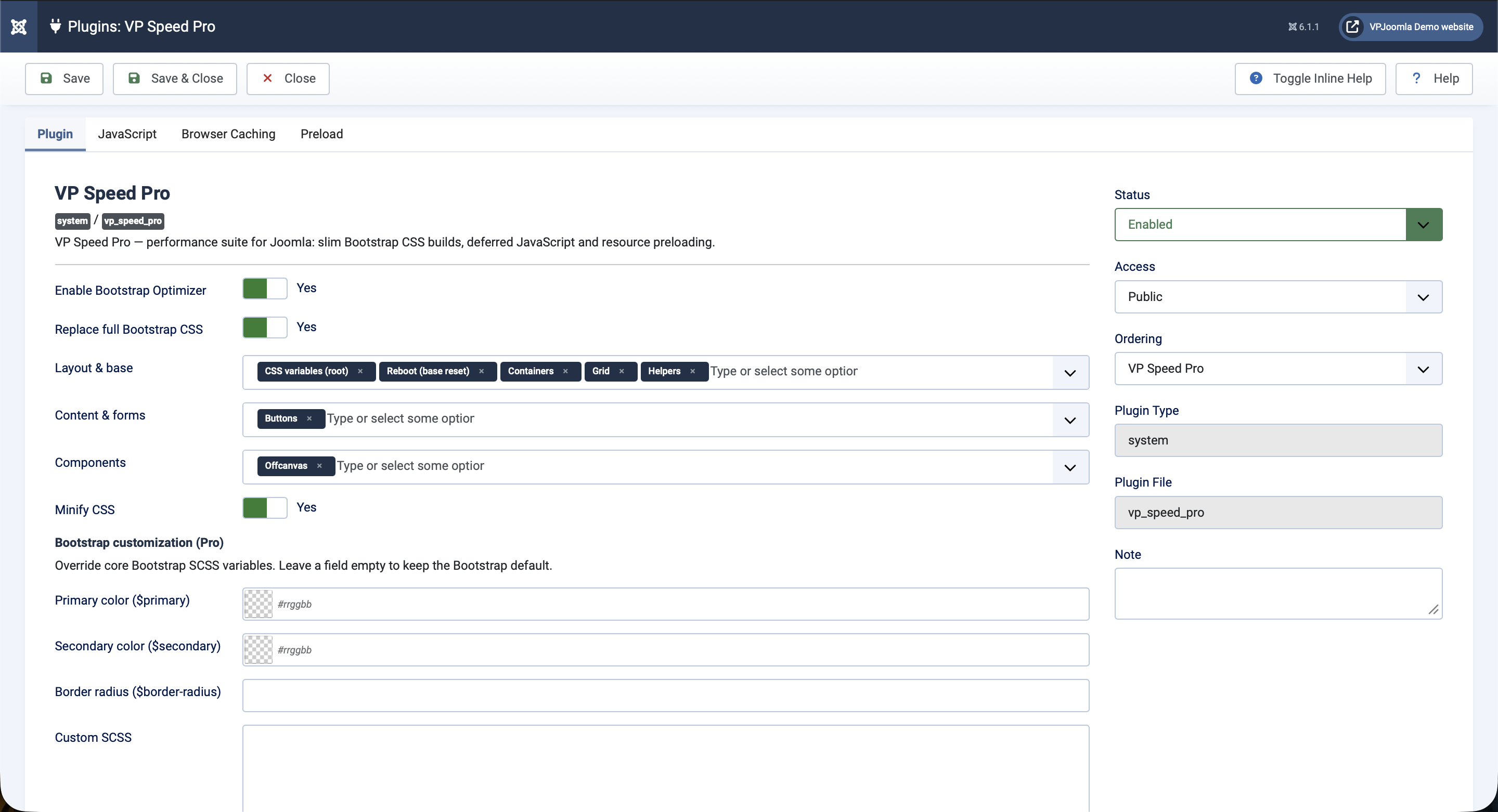
Enabling the optimizer
The Enable Bootstrap Optimizer switch turns the whole feature on. It is on by default, with a starter selection of the core layout parts, so a fresh install already produces a working bundle. The compilation runs when you save — see the previous article for what happens on that first save.
The component groups
The parts of Bootstrap are split across three multi-select fields, mirroring how Bootstrap itself is organized:
- Layout & base — the foundation: CSS variables (root), Reboot, typography, images, containers, grid, helpers and the utilities API.
- Content & forms — tables, forms, buttons and transitions.
- Components — the interactive and visual pieces: dropdown, navbar, card, accordion, modal, carousel, offcanvas, tooltip, and more.
Add a part by typing or selecting it; remove it with the × on its tag. VP Speed always emits the parts in Bootstrap's own canonical order regardless of the order you add them, so cross-dependencies between modules always resolve correctly.
CSS variables (root) is recommended for almost every site — most modern Bootstrap components reference these variables. If colors or spacing look wrong after enabling the optimizer, a missing root selection is the first thing to check.
Choosing the right components
The goal is to select everything your site actually uses — no more, no less. Anything you leave out simply will not be in the compiled CSS, which is exactly how the file gets smaller. The risk is leaving out something you do use, which would make that part of your layout lose its styling.
A practical approach:
- Start with the defaults (root, reboot, containers, grid, helpers) plus buttons.
- Add the components you know your template and content use. Common additions: dropdown and offcanvas for navigation menus, card for content layouts, modal for popups, nav for tabs.
- Save and review your site's key pages — home, an article, a category, any page with a form or menu.
- If something looks unstyled, identify the Bootstrap component behind it, add it, and save again.
Templates most often rely on dropdown, offcanvas and navbar for their menus. If your mobile menu or dropdowns look broken after enabling replacement, those are the components to add first.
Minify CSS
The Minify CSS switch controls whether the compiled bundle is minified (whitespace and comments removed). Leave it on for production; the only reason to turn it off is to inspect the generated CSS while debugging.
Where the bundle goes
The compiled file is written to /media/plg_system_vp_speed/css/ with a hash in its name that reflects your current selection. Because the file lives in /media rather than inside the plugin folder, it survives plugin updates; because its name changes whenever your configuration changes, browsers can cache it indefinitely yet still pick up your edits immediately. You never manage this file by hand.
After changing your component selection, clear the Joomla cache and reload the front end. The compiled CSS updates on save, but cached pages may still reference the previous bundle until the cache is cleared.
Next step
Selecting components produces the slim bundle, but the full Bootstrap from your template is still loading alongside it until you turn on replacement. That is the subject of the next article.