VP Social Login - Configuring Telegram login
Telegram works differently from the other providers: instead of an OAuth client, you create a Telegram bot, tell it your site domain, and paste the bot's username and token into the plugin.
Create a bot with BotFather
- Open @BotFather in Telegram.
- Send
/newbotand follow the prompts: choose a display name, then a username ending inbot. - BotFather replies with your bot's token — keep it safe.
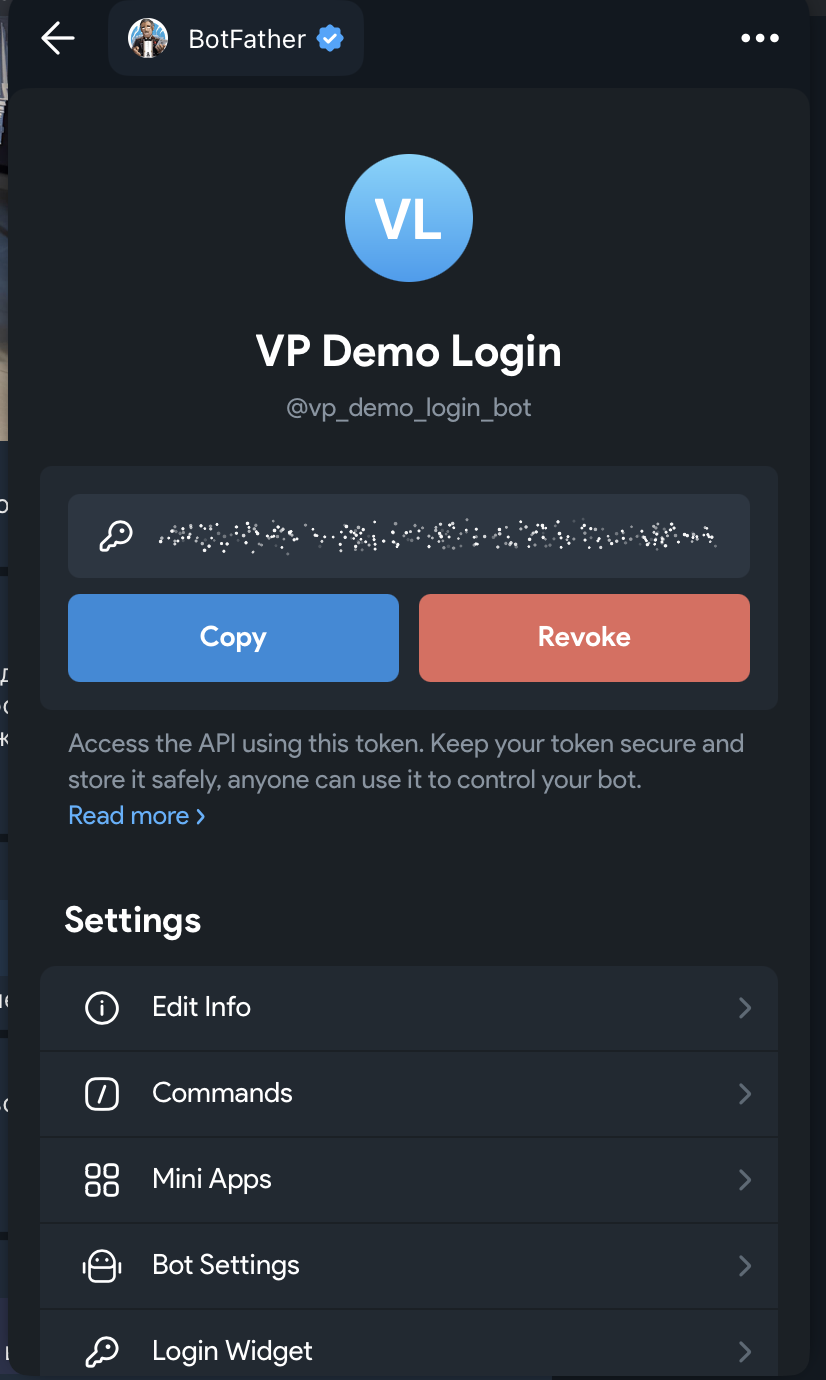
/newbot and copy its token.Set your site domain
Telegram only allows logins from a domain you've registered for the bot:
- In @BotFather, send
/setdomain. - Choose your bot.
- Enter your site's domain.
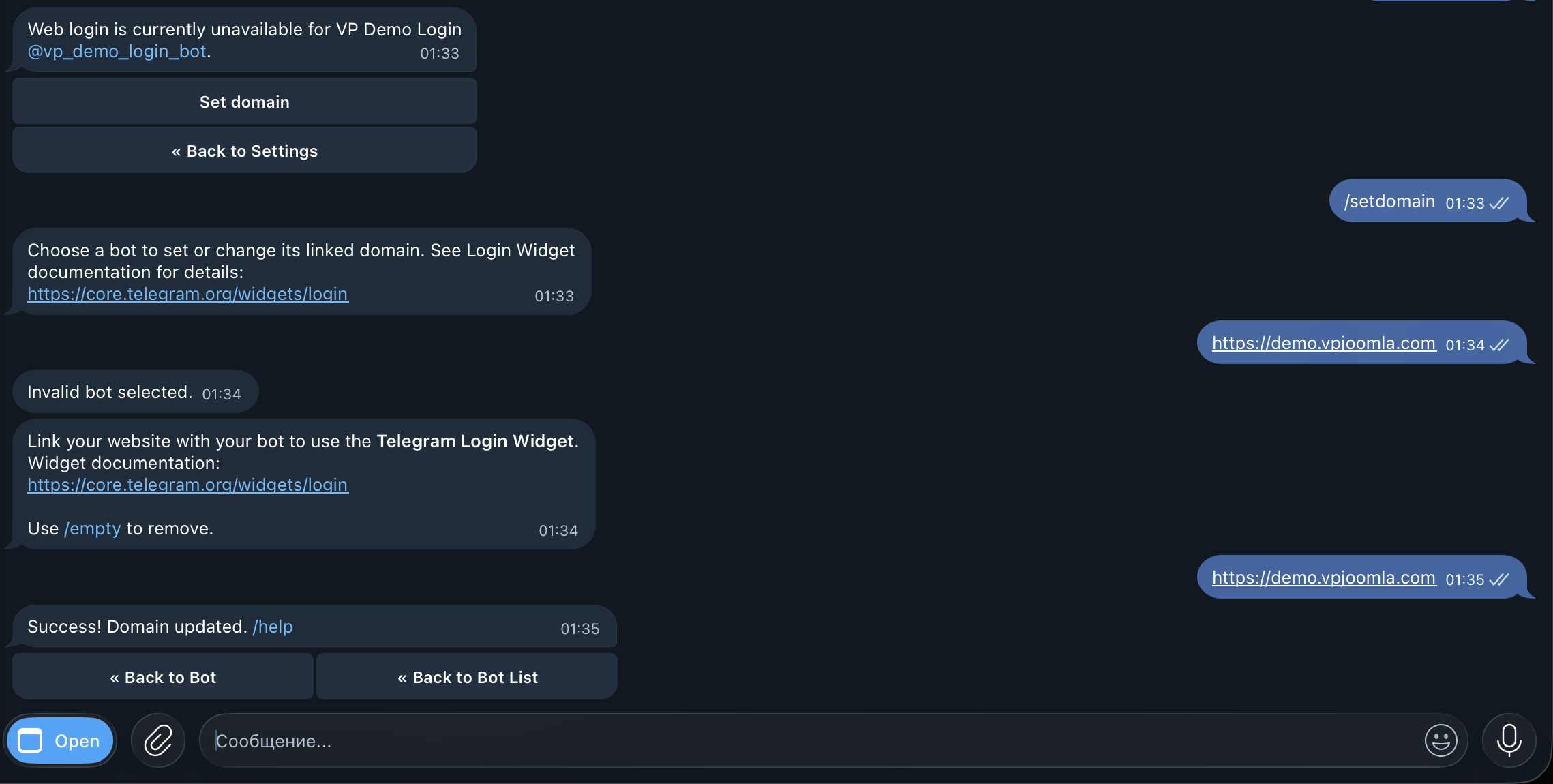
/setdomain.Use the bare domain only — for example your-site.com, not https://your-site.com and not a path. The wrong format is the most common reason Telegram login silently fails to return.
Enter the details in Joomla
Open System - VP Social Login → Telegram, switch Enabled on, then fill in:
- Bot username — without the
@(for exampleyour_login_bot). - Bot token — the token from BotFather.
Click Save.
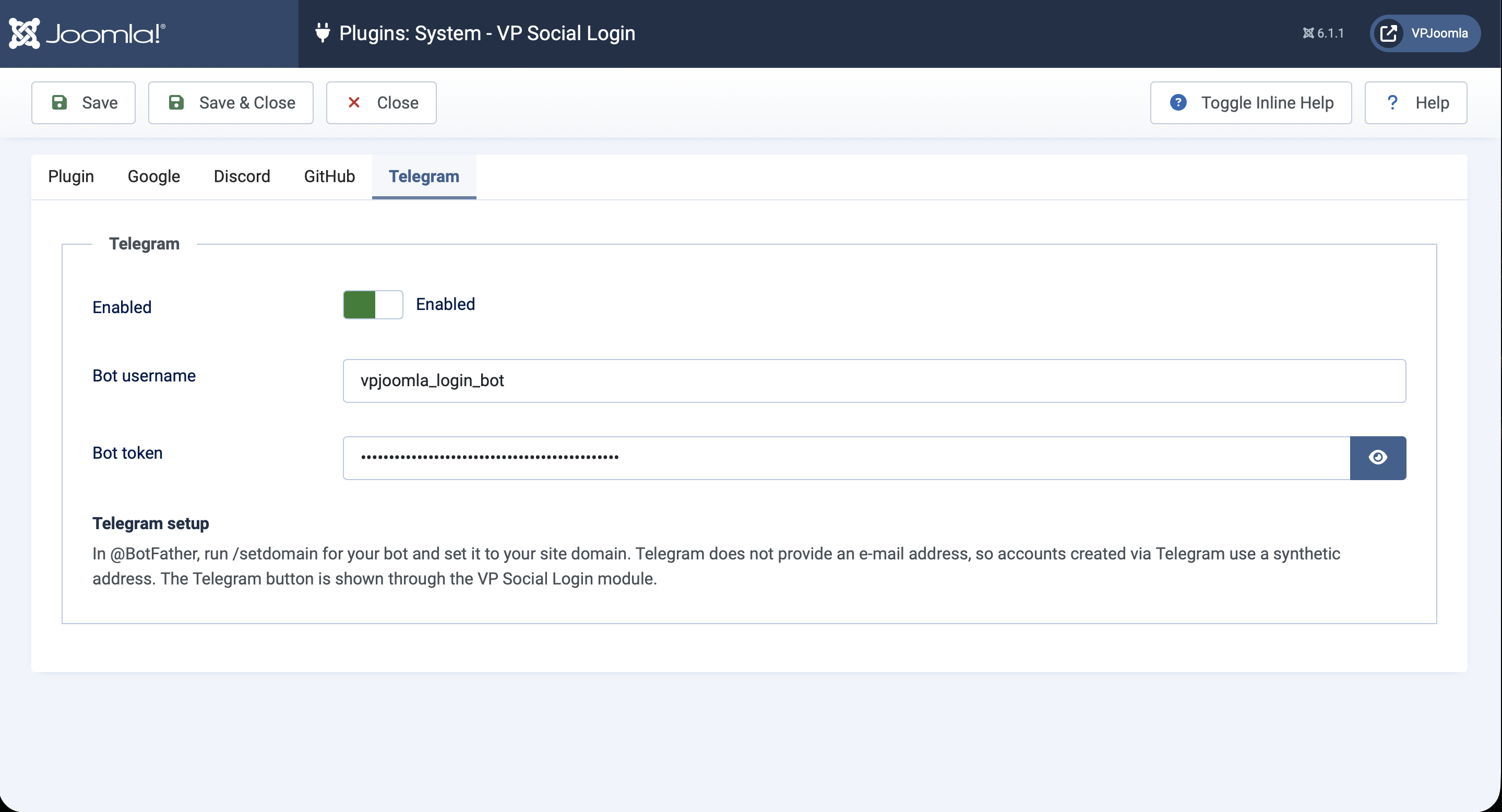
Test it
Log out, open your login page, and click Continue with Telegram. Telegram asks you to confirm, then returns you to the site signed in.
Telegram never shares an e-mail address. VP Social Login gives Telegram accounts a stable internal address automatically, so sign-in and linking keep working — there's nothing extra to configure.
If you've authorised the bot for your domain before, Telegram may sign you in without a prompt — that's expected, it remembers the authorisation.