VP Social Login - Login Module
The module shows the same social buttons anywhere on your site — in any template position or inside an article — independently of the login form.
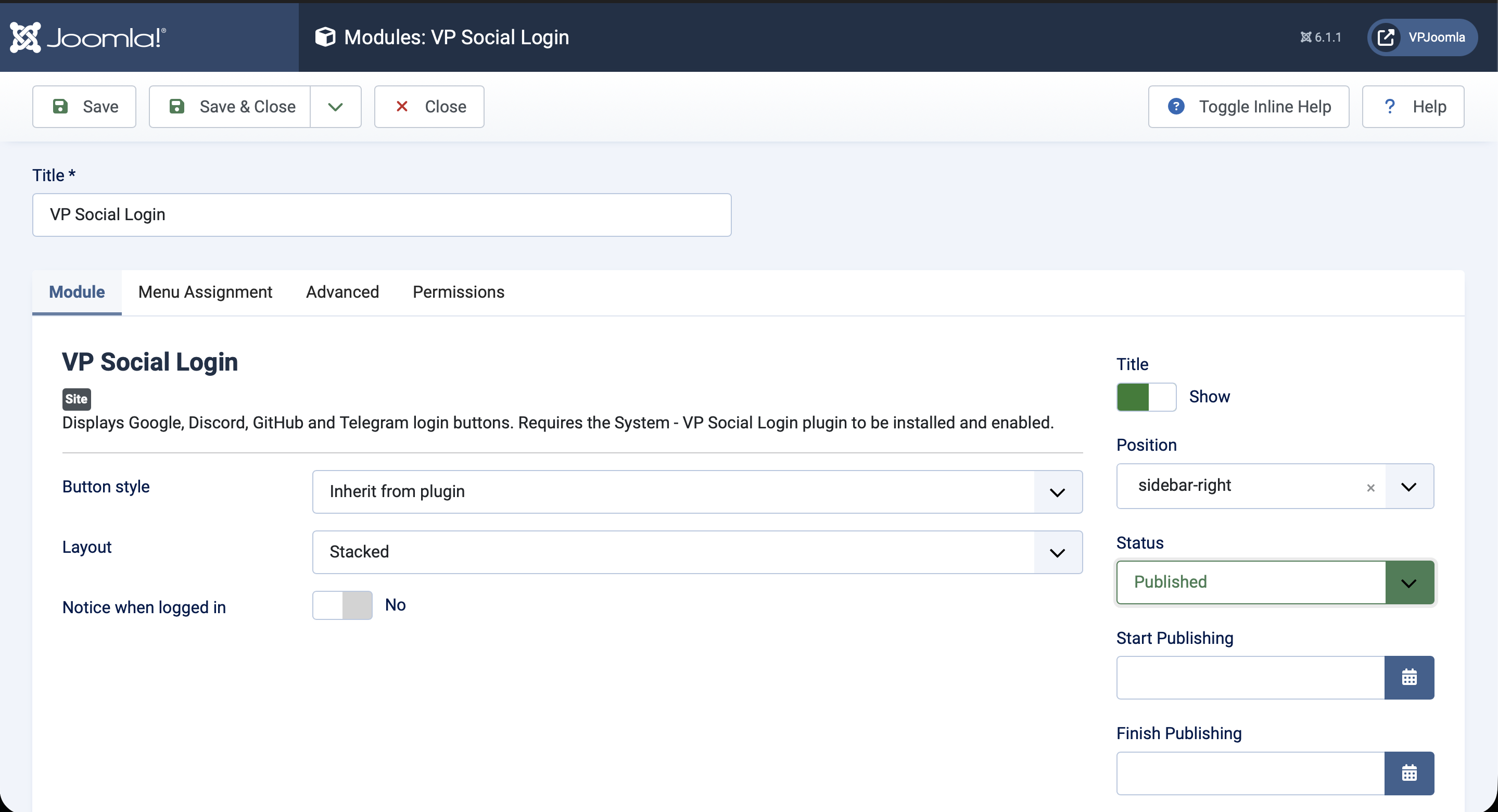
Publish the module
- Go to Content → Site Modules → New and choose VP Social Login.
- Give it a Title (or hide it with Show Title: No).
- Pick a Position in your template (for example
sidebar-right). - Set Status to Published and assign it to the menu items where it should appear.
- Save.
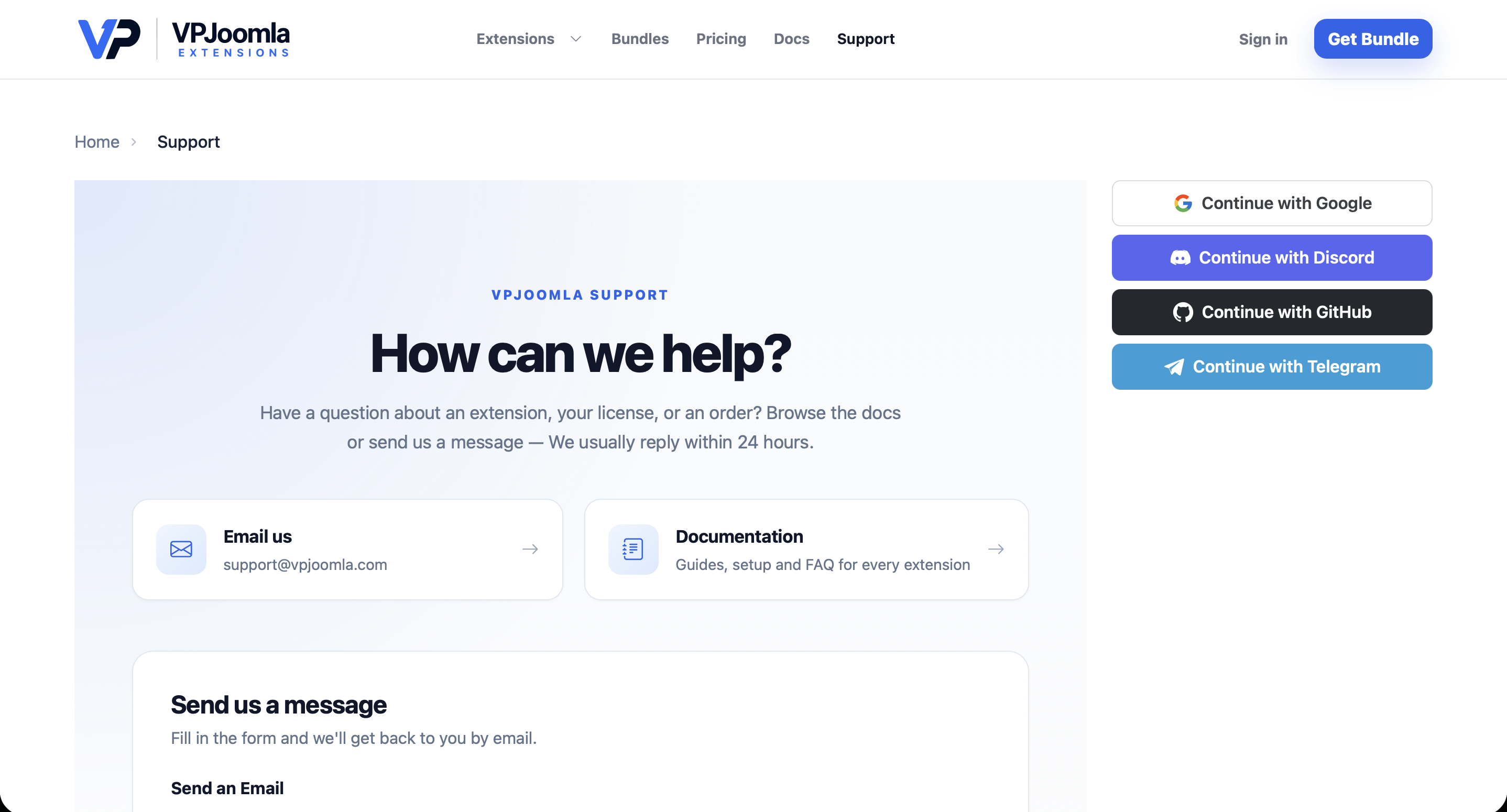
The module requires the System - VP Social Login plugin to be installed and enabled — it renders the buttons that the plugin provides.
Options
On the module's Module tab:
| Option | What it does |
|---|---|
| Button style | Inherit from plugin, or override per module: brand colours, outline, or icon only. |
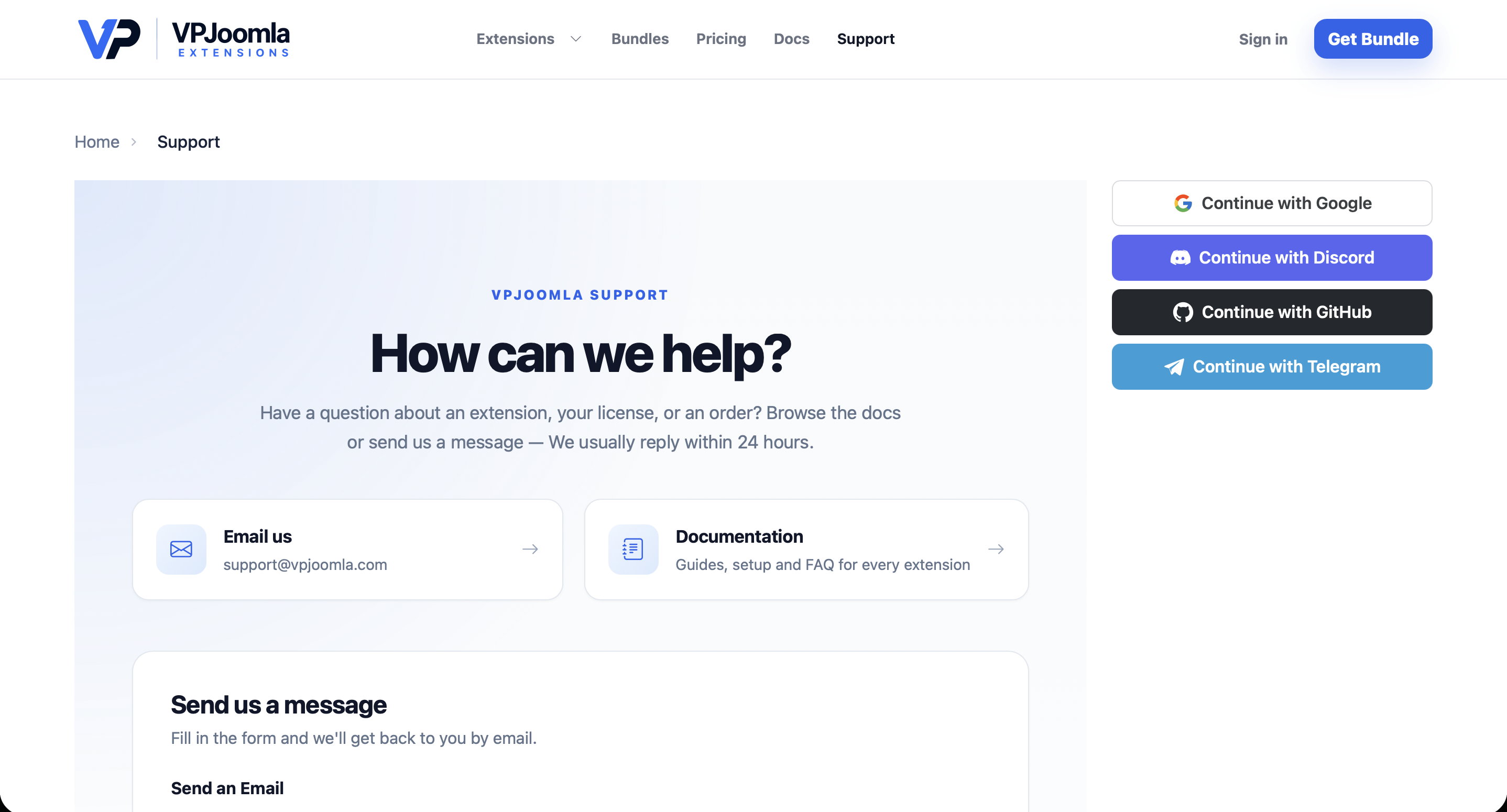
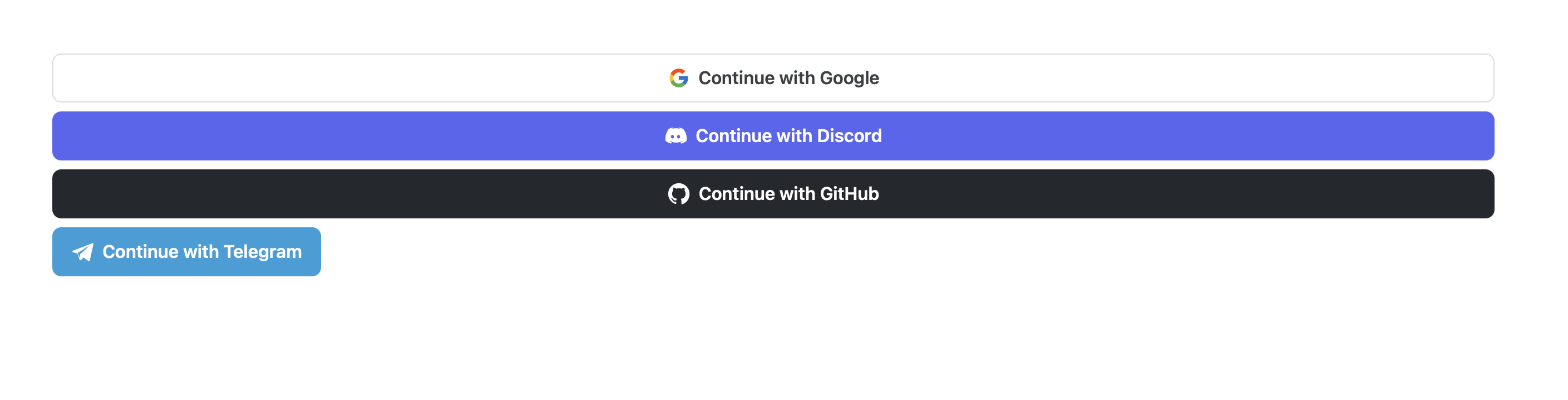
| Layout | Stacked (one button per row) or Inline (buttons in a row). |
| Notice when logged in | Show a short notice instead of nothing when the visitor is already signed in. |
Layouts
Choose the layout that fits the position. Stacked suits narrow columns and sidebars:
Inline suits wide areas and headers:
Show it inside an article
To place the buttons in article content, note the module's ID and use Joomla's loadmodule syntax (the Content - Load Modules plugin must be enabled):
{loadmoduleid 123}Replace 123 with your module's ID.