VP Social Login - Configuring GitHub login
GitHub sign-in uses an OAuth App from your GitHub developer settings. Register the app with VP Social Login's callback URL, then paste the Client ID and secret into the plugin.
Before you start
Open System - VP Social Login, go to the GitHub tab and switch Enabled on. Copy the redirect URI shown there — on GitHub it's called the Authorization callback URL.
It looks like this (with your real domain):
https://your-site.com/index.php?option=com_ajax&group=system&plugin=vpsociallogin&format=raw&vpsl=callback&provider=githubRegister the OAuth app
- Go to GitHub → Settings → Developer settings → OAuth Apps and click New OAuth App.
- Application name — something users will recognise.
- Homepage URL — your site address.
- Authorization callback URL — paste the redirect URI from the GitHub tab (ending in
provider=github). - Leave Enable Device Flow unchecked and click Register application.
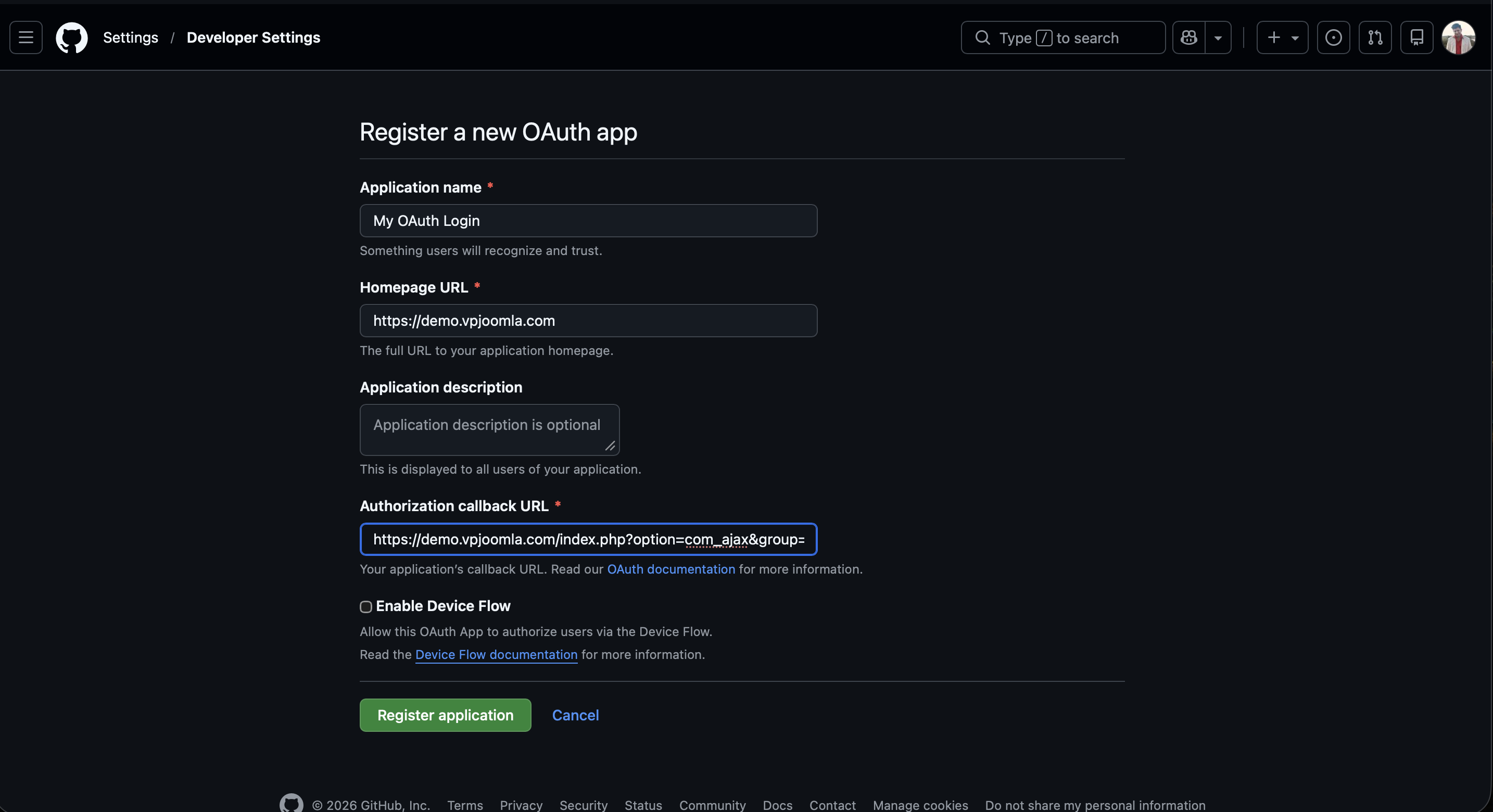
The callback URL must match character for character, including https:// and your domain.
Copy the credentials into Joomla
On the app page, copy the Client ID, then click Generate a new client secret and copy the value.
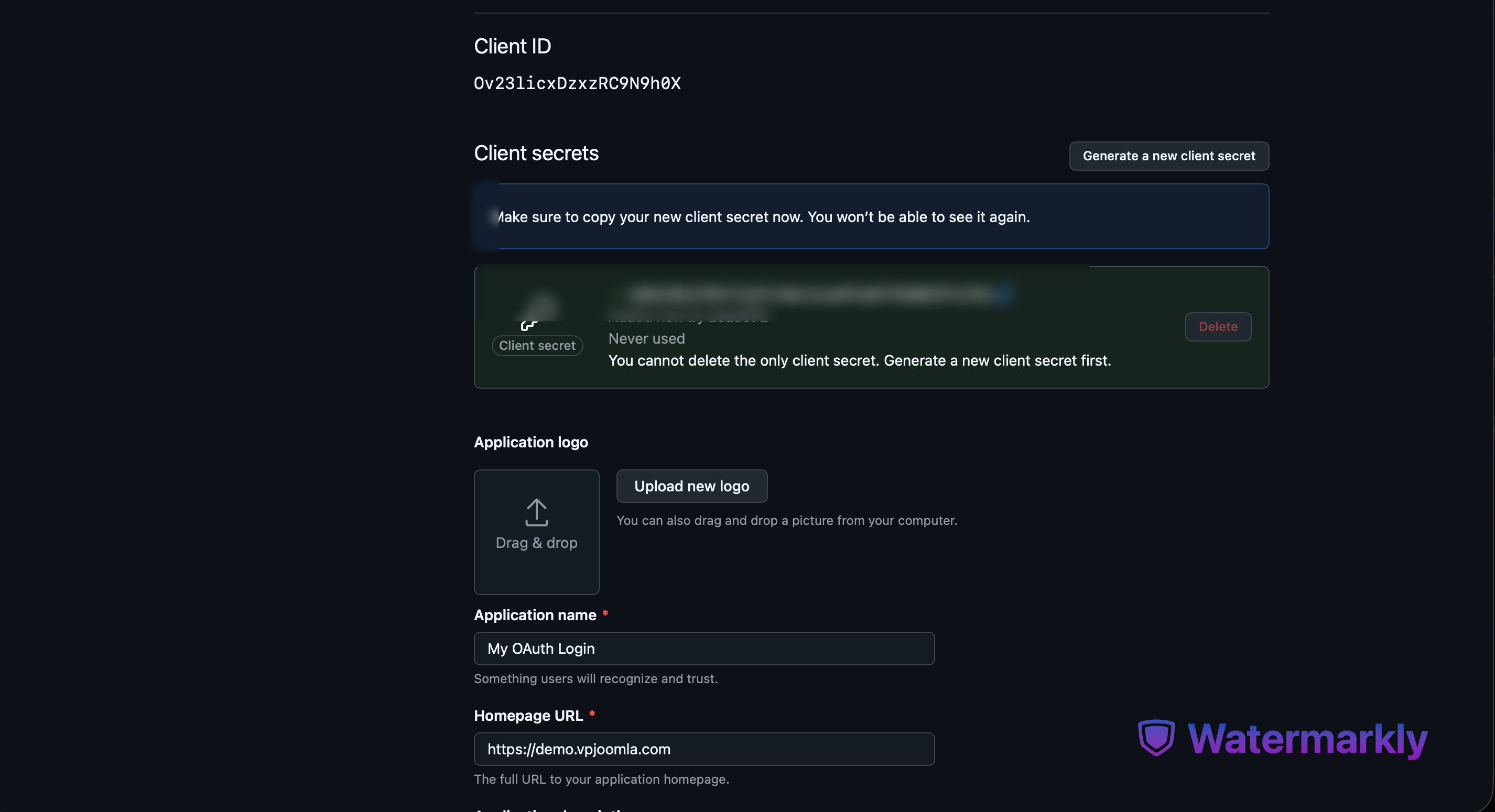
GitHub shows the client secret only once. Copy it straight into Joomla — if you lose it, generate a new one.
Back on the plugin's GitHub tab, make sure Enabled is on, paste both values, and Save.
Test it
Log out, open your login page, and click Continue with GitHub. You should be sent to GitHub to authorize, then returned and signed in.
If a user keeps their GitHub e-mail private, GitHub may not return an address. VP Social Login still signs them in; they're treated as a new account unless linked from the profile.