VP Social Login - Connected accounts
Logged-in members manage their own providers from a Connected accounts panel in their profile — connecting a new provider or disconnecting one they no longer use.
Where to find it
The panel appears on the user's profile edit page, in a Connected accounts section. Each enabled provider is listed with its current status.
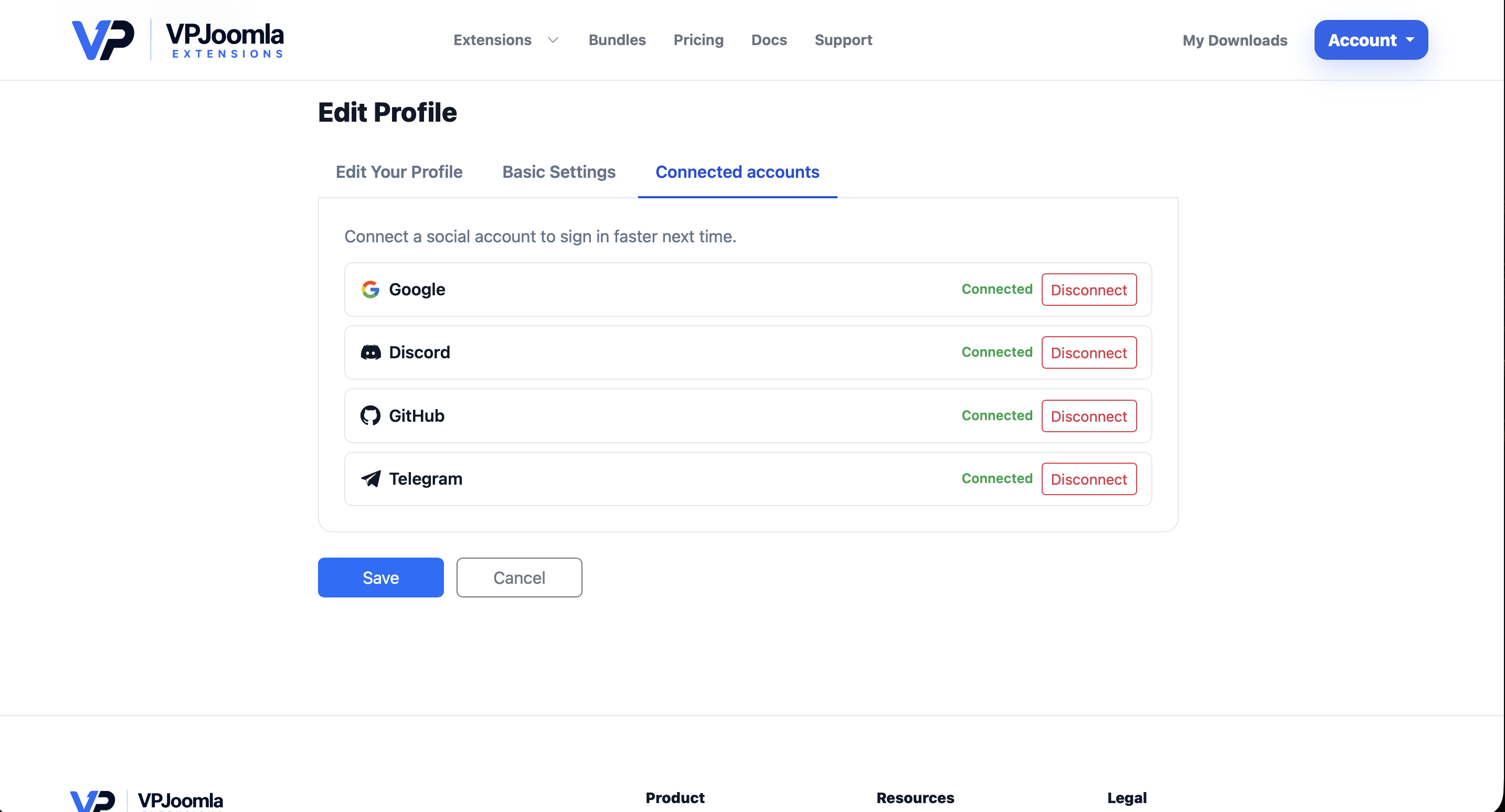
This panel is provided by the User - VP Social Login (Connected accounts) plugin. If you don't see it, make sure that plugin is enabled (see Installation & setup).
Connecting a provider
A provider that isn't linked yet shows a Connect button. Clicking it sends the member to that provider to authorise, then returns them — the row switches to Connected.
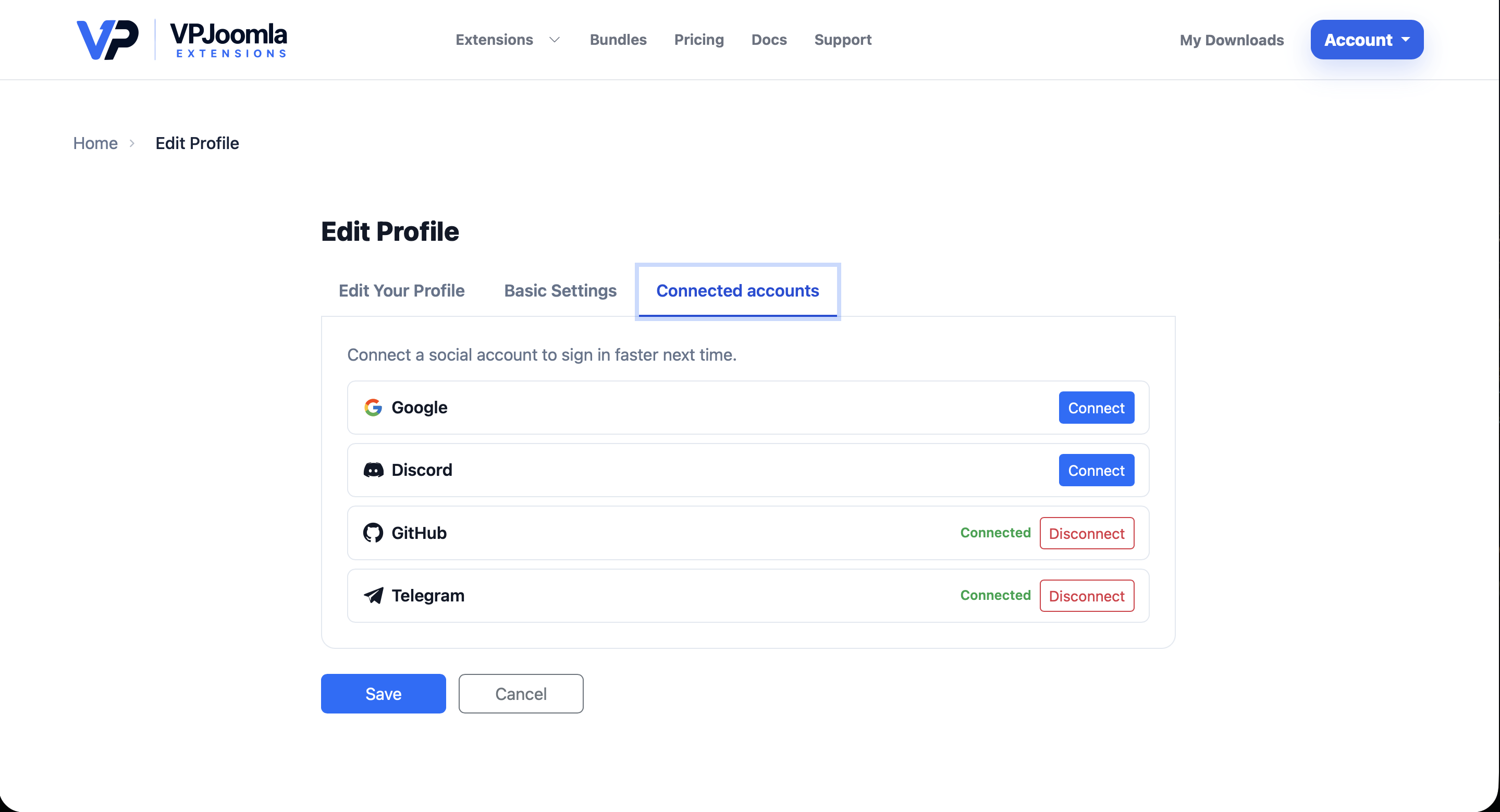
From then on, that member can sign in with one click using the connected provider.
Disconnecting a provider
A connected provider shows a Disconnect button. Clicking it removes the link immediately; the member can reconnect later at any time.
Safeguards
- One identity, one account. A given social account can be linked to only one Joomla user. Trying to connect an identity that already belongs to someone else is refused.
- You can't lock yourself out. If an account was created through social login and has no password, the member can't disconnect their last remaining provider — they'd have no way back in. Connecting another provider or setting a password first removes the restriction.
When a user is deleted
If a user account is deleted, all of its social links are removed automatically — no orphaned data is left behind, and the freed social identities can be linked to a different account later.
If a member has authorised your Telegram bot before, reconnecting Telegram may complete without a prompt — that's expected.